Write with familiar tools
Choose fonts, sizes and colours. Add headings, links, lists and tables using grouped formatting buttons, with tooltips that explain each action.
My Studio · Writing & publishing
Create journals, essays, articles and reports with an editor that helps you keep creating.
Go from a private draft to a reviewed post: write, add pictures, refine their placement and choose when to share. Your writing and image tools stay together throughout.
My Studio writing tools are in testing. Wider customer access is coming soon.
These are captures from the working My Studio editor, using sample content. The writing tools are in testing.
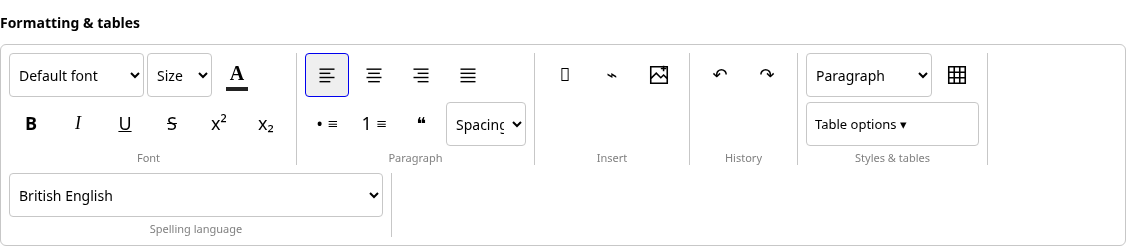
Choose fonts, sizes and colours. Add headings, links, lists and tables using grouped formatting buttons, with tooltips that explain each action.
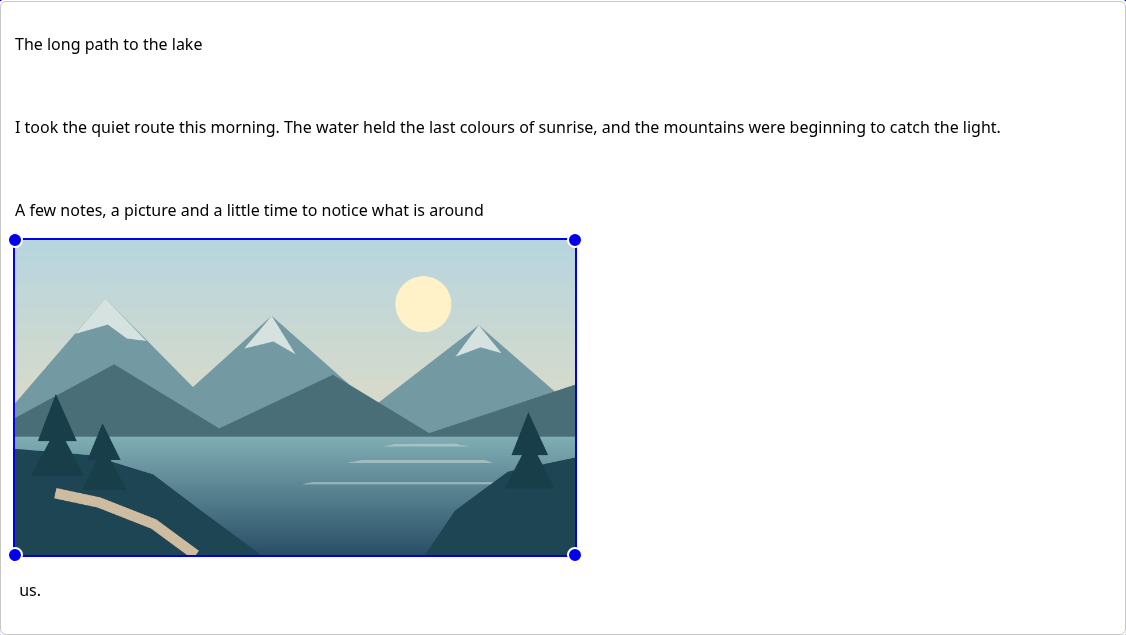
Insert images, drag a corner to resize without stretching, or enter an exact width. Use Fit page to fill the available writing area.
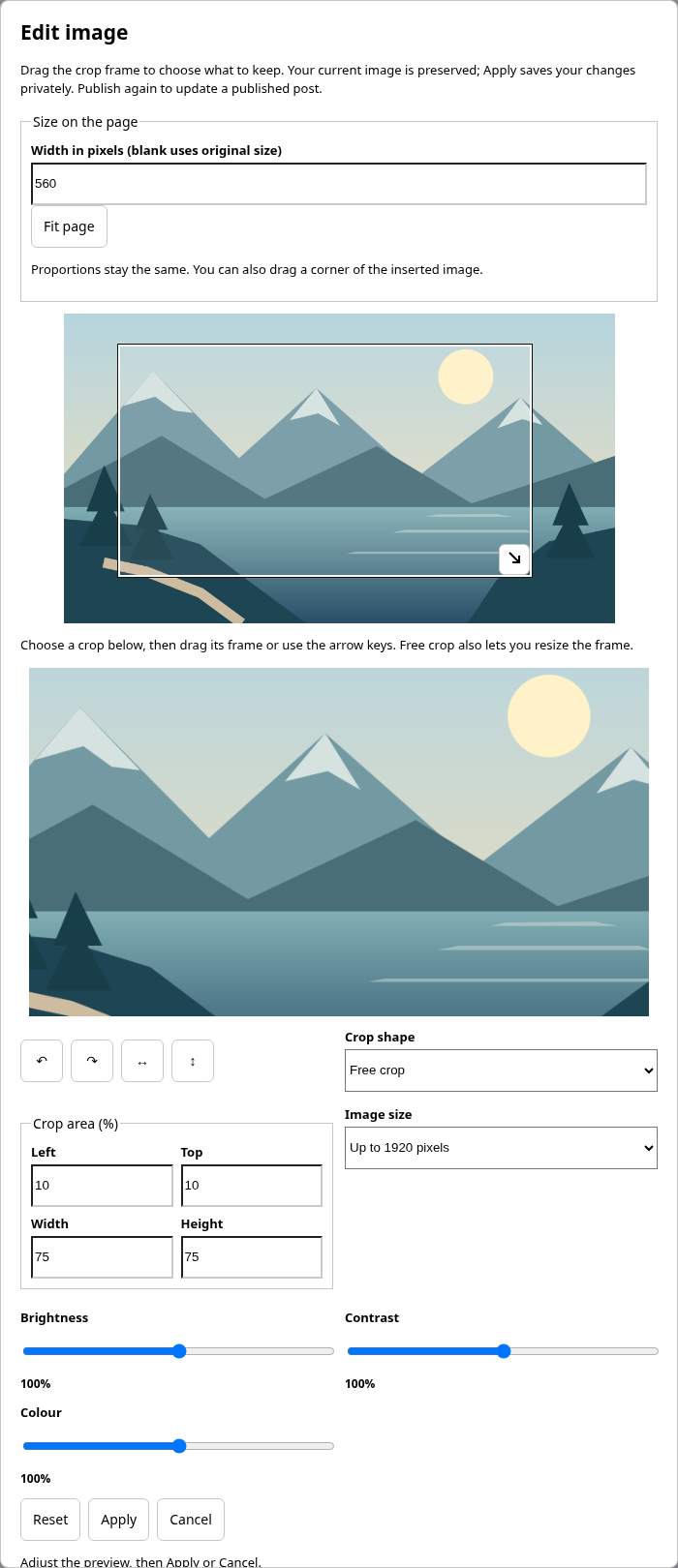
Move the crop frame, choose a free crop or a familiar shape, then rotate, flip or adjust brightness, contrast and colour. Preview the result before applying it.
Page resizing leaves the stored image unchanged. Cropping and colour changes create a new version, with the previous stored image available to restore.
Autosave keeps your changes while you write. Reopen a saved draft from My writing and continue with its text, formatting and images.
Check your post before publishing and choose Public or Private. Later edits to a published post stay private until you publish again.
Start with Journal, Essays & articles or Reports. Add your own writing types, organise with tags, and find drafts in a list with summaries and dates.
Use Save As for a separate draft with its own image copies. Close offers Save, Save As, Don’t Save and Cancel when there are changes to resolve.
Add a cover and a gallery alongside inline images. Arrange photographs and add captions, tags and image descriptions.
Choose Facebook or LinkedIn sharing, use Instagram’s device-share or copy workflow, and configure custom sharing links in Settings. Complete posting in the destination service.
Resize using mouse, touch or keyboard, and set crop dimensions with number fields. The layout adapts to phones; images keep their proportions.
Select a regional language such as Australian or UK English for title, summary and writing spellcheck. Suggestions depend on the dictionaries available in your browser.
Editing a published item does not change the version your readers see. Review your changes, then publish again when you’re ready. Private writing stays private.
Social sharing opens a provider or device workflow for you to finish. Connected automatic posting, AI summaries and translation are separate planned features.
Explore SoraDocs, SoraPhotos, SoraImage and SoraPDF alongside the developing My Studio writing experience.